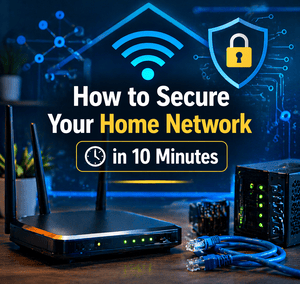
How to Secure Your Home Network in 10 Minutes
Your home network is the gateway to everything—your devices, your files, your smart home, and even your work environment. Yet, most people set up their Wi-Fi once and never touch the settings again.
That’s exactly what hackers count on.
The good news? You don’t need to be a cybersecurity expert to lock things down.
In fact, you can dramatically improve your network security in about 10 minutes.
Let’s walk through it step by step.
Why Securing Your Home Network Matters

Your home network connects everything:
- Phones and laptops
- Smart TVs and streaming devices
- Security cameras
- Smart thermostats and IoT devices
If your network is compromised, attackers could:
- Spy on your activity
- Steal personal data
- Access work systems
- Control smart devices
This isn’t just a “tech problem”—it’s a privacy and security issue.
Step 1: Change Your Default Router Login (2 Minutes)


Most routers come with default usernames and passwords like:
- admin / admin
- admin / password
These are publicly known—and attackers know them.
What to do:
- Open your browser
- Go to your router IP (usually 192.168.1.1 or 192.168.0.1)
- Log in
- Change the admin username and password
👉 This step alone blocks a huge percentage of basic attacks.
Step 2: Rename Your Wi-Fi Network (SSID) (1 Minute)


If your Wi-Fi name looks like:
- NETGEAR123
- Verizon_Fios_456
- LinksysHome
You’re revealing your router brand—and possibly vulnerabilities.
What to do:
- Change your SSID to something unique
- Avoid personal info like your name or address
Example:
✔ SecureNet_Alpha
❌ JohnSmith_WiFi
Step 3: Use Strong Wi-Fi Encryption (WPA3 or WPA2) (1 Minute)


Encryption protects your data as it travels over Wi-Fi.
Best options:
- WPA3 (most secure)
- WPA2 (still acceptable if WPA3 not available)
Avoid:
- WEP (outdated and easily cracked)
- Open networks (no password)
👉 This ensures that even if someone is nearby, they can’t read your traffic.
Step 4: Create a Strong Wi-Fi Password (1 Minute)


Your Wi-Fi password should be:
- At least 12–16 characters
- A mix of letters, numbers, and symbols
- Not reused anywhere else
Example:
✔ T9!kL#92@xPqZ
❌ password123
👉 A weak password makes all other security useless.
Step 5: Disable WPS (Wi-Fi Protected Setup) (1 Minute)

WPS lets you connect devices quickly—but it’s a known security risk.
Attackers can exploit it to gain access to your network.
What to do:
- Go to wireless settings
- Turn WPS OFF
Step 6: Update Your Router Firmware (2 Minutes)


Routers, like any software, have vulnerabilities.
Manufacturers release updates to fix them—but many people never install them.
What to do:
- Check for firmware updates in your router settings
- Enable auto-update if available
👉 This keeps your network protected against known exploits.
Step 7: Set Up a Guest Network (1 Minute)


When guests connect to your Wi-Fi, they shouldn’t have access to your main network.
What to do:
- Enable Guest Network
- Use a different password
- Limit access to internal devices
👉 This protects your personal devices from unknown users.
Step 8: Disable Remote Management (30 Seconds)


Some routers allow access from outside your home network.
If enabled, attackers could try to log in remotely.
What to do:
- Turn Remote Management OFF
Step 9: Review Connected Devices (30 Seconds)


Check who’s currently connected to your network.
If you see unknown devices—that’s a red flag.
What to do:
- Remove suspicious devices
- Change your Wi-Fi password if needed
Step 10: Enable Two-Factor Authentication (If Available)

Some modern routers and accounts support 2FA.
This adds an extra layer of protection to your login.
For a deeper breakdown of how this works and why it’s critical, check this guide:
👉 https://hitcountbreakpoint.com/application-security-testing-2025-user-guide/
Bonus: Take Your Security Even Further
If you want to go beyond the basics:
- Use a VPN when browsing
- Set up a firewall device
- Segment IoT devices into a separate network
- Monitor traffic with a home lab (great for learning cybersecurity)
If you’re curious about modern cyber threats targeting home users, this breakdown is worth reading:
👉 https://hitcountbreakpoint.com/top-10-cybersecurity-threats-in-2026/
And if you’re building applications or want to understand how secure systems are designed:
👉 https://hitcountbreakpoint.com/asp-net-mvc-architecture-net/
For official guidance and best practices, refer to Cybersecurity and Infrastructure Security Agency.
Final Thoughts
Securing your home network doesn’t have to be complicated or time-consuming.
In just 10 minutes, you can:
- Lock down your router
- Protect your data
- Reduce your risk of being hacked
Most people never take these steps—which means simply doing them puts you ahead of the majority.
Think of your network like your front door.
You wouldn’t leave it unlocked—so don’t leave your Wi-Fi exposed.